

Apple has rolled out the iOS 26.1 update, the first major upgrade since iOS 26 launched in September. This iOS 26.1 release arrives a month later and brings simple but powerful improvements. It supports iOS 26.1 compatible devices like the iPhone 11 series and later, plus the iPhone SE 2nd gen update.
To start your iOS 26.1 download, go to Settings > General > Software Update. The process is quick and fits well with the usual Apple software update guide.
New Visual Control Features
One of the most requested additions is the Liquid Glass opacity toggle. This helps users who prefer less translucency on their screens.
You also get the new iOS alarm swipe feature and iOS timer swipe feature, which now require a swipe gesture to turn them off. Apple also added a long-awaited Lock Screen Camera toggle iOS option.
Smarter Experiences Across Apps
The Update expands Apple Intelligence languages and improves AirPods Live Translation, giving users more flexibility. Apple also made subtle but useful tweaks across Settings, Music, TV, Phone, Fitness,
Photos, and Safari. These small refinements support smoother navigation and highlight several iOS 26.1 new features, including iOS 26.1 Photos app changes, iOS 26.1 Music app changes, iOS 26.1 Fitness updates, and iOS 26.1 Safari updates.
How to Install iOS 26.1
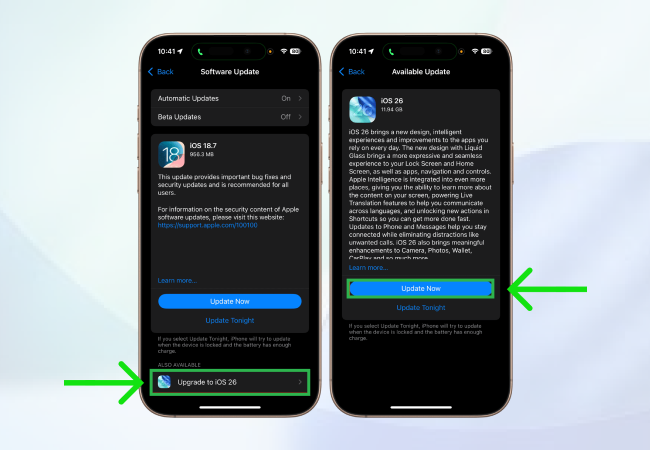
To update iPhone software, open Settings and tap General. Choose Software Update, hit Update Now, and follow the on-screen steps. This quick action ensures you get the latest Apple OS update, access to the newest tools, and the most recent iOS update news through a clean and smooth iOS update guide.
Adjusting Liquid Glass in iOS 26.1
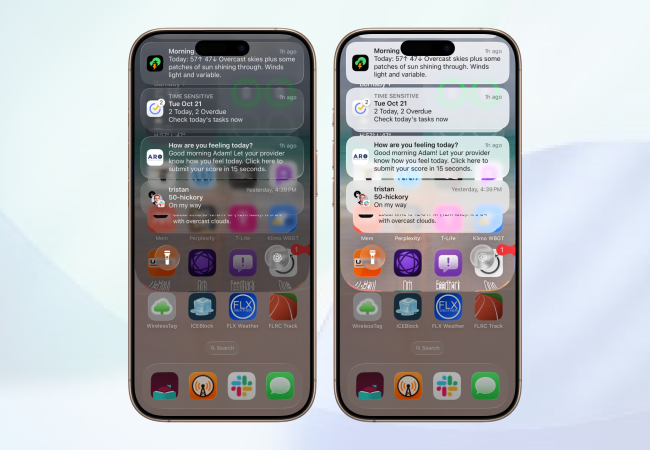
The iOS 26.1 update brings more control to the Liquid Glass design on your iPhone. Apple now lets you fine-tune this look with simple settings. These changes highlight several iOS 26.1 new features that focus on customisation, clarity, and quick visual adjustments.
More Control With Clear and Tinted Modes
You can now manage the iOS 26.1 Liquid Glass design with two options: Clear and Tinted.
Go to Settings > Display & Brightness > Liquid Glass to see the new Liquid Glass Toggle.
Apple explains it clearly:
- Clear mode boosts transparency and reveals background elements.
- Tinted mode increases Liquid Glass opacity and adds stronger contrast.
These modes update areas like Notification Centre, Liquid Glass, and search bars. While these changes don’t instantly adjust your Home Screen, Apple gives you another way to control these elements.
Change Liquid Glass on Your Home Screen
If you want deeper Liquid Glass customisation iPhone options, you can adjust them manually on your Home Screen.
Long-press your Home Screen, tap Edit, and select Customise.
Here you can:
- Switch your app icons between Liquid Glass Clear mode and Liquid Glass Tinted mode.
- Tap Light, Dark, or Auto to modify Liquid Glass Home Screen settings.
These steps let you tune the look exactly the way you want, offering more direct control than the main Liquid Glass Toggle.
For added visibility, go to Settings > Accessibility > Display & Text Size.
Turn on Reduce Transparency to fine-tune more interface elements. This supports better readability and improves key iOS 26.1 accessibility settings.
Users Have Mixed Reactions
Reactions to the new design vary. Some users say Liquid Glass reduces iPhone Liquid Glass readability, especially in bright backgrounds. Others enjoy the modern and playful look.
If the old design wasn’t for you, these iOS 26.1 design changes might change your mind. Still, design is only part of the story. Updating your iPhone matters more.
Why You Should Always Update iOS
Looks are optional. Security is not. Always download iOS update packages to protect your device. These updates patch vulnerabilities, fix bugs, and improve your privacy. Security beats aesthetics every time.
Automatically Install Security Improvements
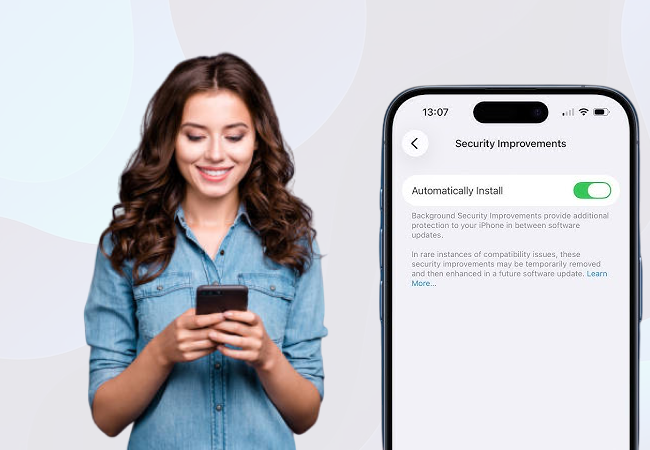
One of the standout additions in the iOS 26.1 release is Background Security Improvements. This feature installs small security updates automatically.
Go to Settings > Privacy & Security > Background Security Improvements to enable it.
Apple says these improvements protect your device between major updates. In rare cases, they may be removed temporarily if there’s a compatibility issue. Apple then enhances and restores them through a future update.
This system feels similar to iOS Rapid Security Responses, also known as the iOS RSR feature. Apple launched RSRs in 2023 as fast security fixes. While rarely used lately, this new feature works quietly and automatically. After enabling it, you no longer need to check for daily security patches.
Stop Accidental Camera Opens
Another smart improvement in the iOS 26.1 interface update is the Lock Screen Camera toggle. Many users open the Camera by mistake when swiping the Lock Screen.
You can now turn off this behaviour.
Go to Settings > Camera and scroll to find Lock Screen Swipe to Open Camera. Turning it off prevents accidental launches and keeps your Lock Screen more controlled.
New Control Over Phone Call Haptics
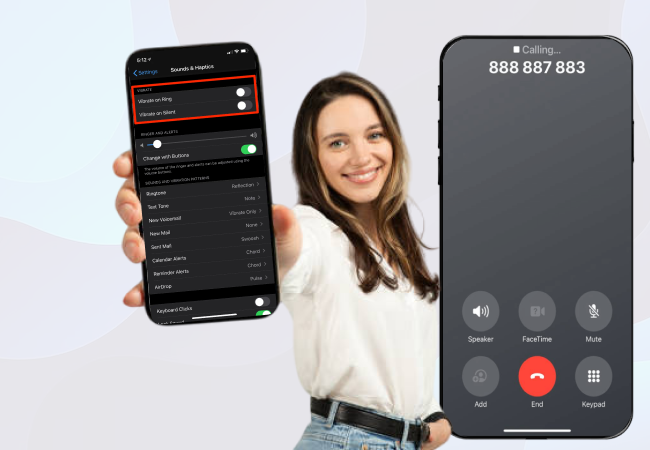
The iOS 26.1 update also adds better control for haptics during phone calls.
You can now turn off vibrations when a call connects or ends. This avoids confusion when you think a new notification has arrived.
Go to Settings > Apps > Phone and turn off the Haptics toggle.
This fits into broader iOS 26 phone app settings that help reduce distractions.
Local Capture: Better Recording Controls
The Local Capture iOS feature now gets its own Settings page. This makes it easier to manage how you record video calls on iPhone and record audio calls on iPhone with high quality.
You can find these controls in Settings > General > Local Capture.
Here’s what you get:
- A clean menu to choose your iOS 26.1 save location, Local Capture
- A simple iOS 26.1 audio recording toggle for switching between audio-only and full capture
- A fast way to add Local Capture to Control Centre
- Improved behaviour when using the Liquid Glass Toggle, which works smoothly with the new Local Capture UI
These additions help you start recordings faster, organise them better, and keep Local Capture settings iPhone within quick reach.
New Accessibility Option for Touch

The Update adds new iOS 26.1 Accessibility features to make touch interactions more comfortable. You can now prefer single-touch actions on iOS instead of sliding gestures.
Go to Settings > Accessibility > Touch and scroll to the bottom.
This upgrade makes navigation faster and improves the overall iOS 26.1 Accessibility Touch settings experience.
Alarm Upgrade: Swipe to Stop
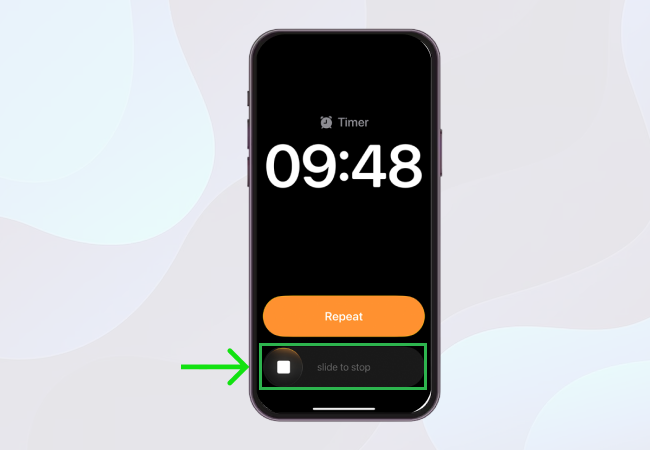
Apple refined alarms again with a new iOS alarm swipe feature. With the iOS 26.1 alarm update, you now swipe to stop your alarm.
This helps prevent accidental alarm dismissal on iPhone moments and pairs well with the flexible alarm snooze options iOS already introduced.
For deep sleepers, this is perfect. For quick movers, it may take a moment to adapt.
Apple Music: Swipe to Change Songs
The iOS 26.1 Apple Music update brings a small but powerful gesture upgrade. Instead of tapping next or previous, you can now use the Apple Music swipe to change songs feature.
Just swipe left or right on the song title.
This works both on the full-screen player and the mini player. The swipe song title on Apple Music motion even includes a neat jump animation.
Live Translation Adds More Languages
The Live Translation iOS 26.1 feature now supports more global languages. You can now use:
- Apple Live Translation Mandarin (Simplified + Traditional)
- Apple Live Translation Italian
- Apple Live Translation Korean
- Japanese
This makes conversations smoother whether you’re travelling, studying, or working abroad.
Apple Intelligence Expands Language Support
The new Update adds more Apple Intelligence-supported languages. If your iPhone supports Apple Intelligence, you’ll now have access to:
- Chinese (Traditional)
- Danish
- Dutch
- Norwegian
- Portuguese (Portugal)
- Swedish
- Turkish
- Vietnamese
This improvement strengthens the entire Apple AI languages update ecosystem.
New Video Scrubbing Bar in Photos
You’ll also see a cleaner video scrubbing bar in iOS inside the Photos app. The bar is more compact and inline, making it easier to scrub through content.
This small change fits well with the broader iOS 26.1 interface changes and belongs to the many iOS 26.1 hidden features you may not notice at first.
iOS 26.1 Release Notes: What’s New in This Update
Apple rolled out the iOS 26.1 update, and it brings a clean set of improvements that make your iPhone feel smarter, faster, and safer. The iOS 26.1 release notes highlight small but powerful upgrades across design, music, fitness, and privacy.
Enhanced Liquid Glass and Visual Control
The Update adds a Liquid Glass setting in iOS that lets you pick a clear look or a Liquid Glass-tinted look. The tinted option boosts Liquid Glass opacity on iPhone, especially across apps and Lock Screen notifications.
Better Language Support and Live Translation
Apple expands Live Translation AirPods support. You can now use it in:
- Apple Live Translation Chinese (Simplified and Traditional)
- Apple Live Translation Japanese
- Apple Live Translation Korean
- Apple Live Translation Italian
Apple Music and Audio Improvements
The Update also introduces the Apple Music MiniPlayer swipe gesture, which helps you switch tracks faster. You also get Apple Music AutoMix AirPlay, making wireless playback smoother.
External USB mics now support USB microphone gain control on iOS, and Local Capture iOS lets you save recordings to a specific location.
Fitness, Camera, and FaceTime Upgrades
You can now log workouts manually using the Fitness app’s manual workout logging feature.
A new Camera Lock Screen swipe toggle lets you turn off the Lock Screen Camera swipe if you open it accidentally.
FaceTime also gets an improved audio quality in low-bandwidth situations.
Safer Browsing for Child Accounts
Apple boosts parental controls with stronger Communication Safety iOS 26.1 and iOS content filters update. These settings now apply automatically to the child account web filters on the iPhone.
Final Thoughts
The iOS 26.1 features pack useful upgrades across privacy, design, and everyday tools. It’s a clean step forward and keeps the iPhone ready for what’s next in Apple’s latest OS update.


Leave a Reply